The Control Menu is at the top-right of the window (more fully described in its own section below).
The first (left) menu button is the Data Menu which gives access to lists of all the data Elements in the model:
|
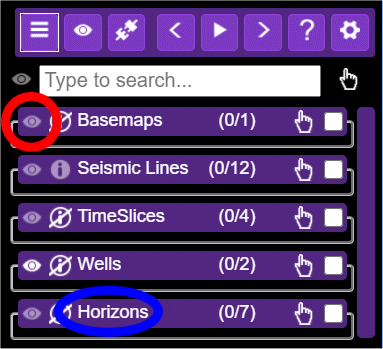
The first-level list shows all the Element categories that are in the Model.
Each of the Element categories can be further expanded to show their contents by clicking on the category name (ringed in blue).
The whole Element set can be turned on or off by clicking on the eye icon (circled in red). In fact by clicking on the icon you cycle through on (transparent), on (opaque), off. This is the same wherever you see this eye icon. |
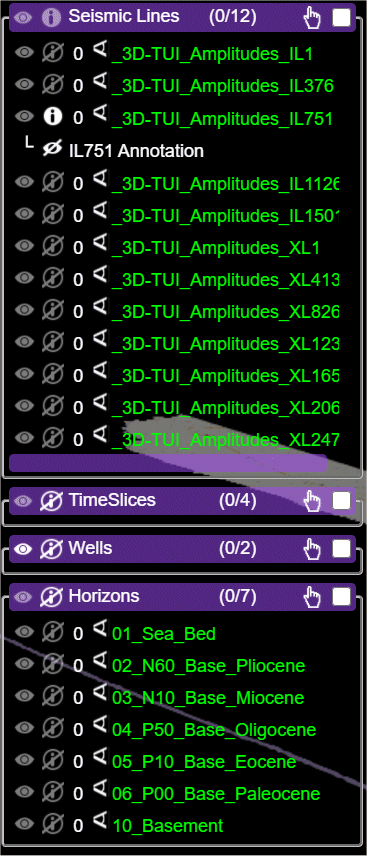
If you expand the categories (by clicking on the category name) you will see:
|
For each individual element you can use the eye icon
If the circled 'i' icon
Clicking on the "look at" icon
The "tag all" icon
The "isolate list element" check box |


If you double click on an item in the model view or single click on an item in the menu, then it becomes a “tagged object” on the left hand side of the map window.
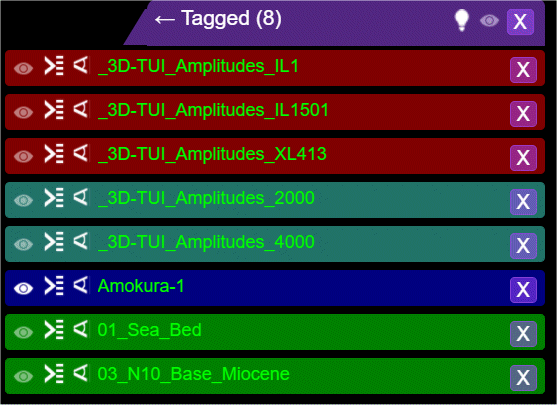
Clicking on the "Sync with list" icon  will make that Element visible in the data list on the right, if the list is open.
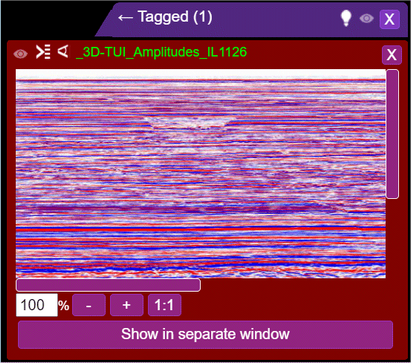
If you click on the name of one (or more) of these objects you get a 2D view of the object:
|
You can show this version of the object in a separate 2D window/tab by clicking on the "Show in separate window" button.
If you are in a Tour (see later), the caption will say "Edit tour annotation" because the Elements, when displayed in a separate window, can be drawn on to make persistent annotations. |