ADVANCED USE
Depending on your user privileges, you will either see the "Master" or "Author" as an option for "Tour Activity".
Ordinary users will see the "Author" option which allows them to create any number of Tours for any model, with all their Tour Names automatically being the same as their logged-on user ID. This means that different users' Tours will not interfere with each other.
More privileged users (usually administrators) are able to "Master" Tours which involves exactly the same activities except their Tours can have any name.
To author a Tour you must decide on its Tour Number (default 1 but it can be any number, to distinguish it from all your other Tours for this Model).
There are two ways to run a tour, one which is live and made up on the fly ("Broadcast mode"), the other where you create a pre-canned set of steps ("Tour Build mode").
Whichever way you choose you will need to share the Model name, Tour name (which will be your user name) and Tour number. To make things easy, you can click on the "Link" button and cut and paste the resultant link into an email to send to your audience.
It is important to remember that Tours are composed of one or more Keyframes or Stations or Slides - as described in the earlier sections.
Broadcast mode - show and tell
In Broadcast mode, which is the default mode, the Tour Author continuously updates ONE Keyframe (the Active Keyframe) of the Tour.
The Active Keyframe is always shown in the bottom-left box of the GeoReality window:
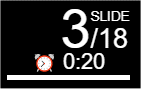
The above example shows that the Tour has 18 Keyframes and the Active Keyframe is 3.
It also shows that this Keyframe lasts 20 seconds.
When you launch GeoReality via the Author button you get a new menu option: "Push to tour":

When you click on the circled "Push to tour" icon above, it turns orange and is "armed" for updating the Active Keyframe.
New icons appear:

You can make any changes to your models display and then press the red up-arrow "Send" icon to update the Active Keyframe.
All users connected to the same Tour will see that change within a few seconds.
The white down-arrow ("Pull keyframe") icon works the other way: it will update your models display to the value of the Active Keyframe.
This is useful for modifying an existing multi-keyframe Tour: you pull in the current value of the Active Keyframe and can then change it by manipulating your models display. Then you Send the new model display state to store it in the Keyframe by pressing the red up-arrow.
Tour Build mode - make a presentation
To switch from Broadcast mode to Tour Build mode, go to the Settings menu:
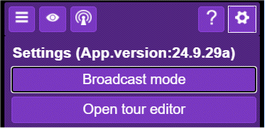
Clicking on the "Broadcast mode" button will switch into Tour build mode:
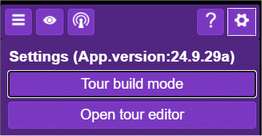
Now the "Push to Tour" option, when pressed (armed), is coloured red:

Every time the red up-arrow is pressed, a new Keyframe is appended to the end of the Tour (irrespective of what is the Active Keyframe).
It is easy to build up a Tour: a sequence of views of the model, changing the perspective and any visibility setting and then pressing the red up-arrow.
To then edit and manage a Tour built in this way, including adding subtitles and voice clips, switch back to Broadcast mode and use the Tour Editor described in the next section.