There are two ways you're likely to join a Tour.
1) Someone sends you a link generated from the Link button described in the previous section which you click on to open.
2) Someone tells you which model , Tour Name and Tour Number to enter in the dialog described in the previous sections and then you hit Join.
Either way, as a tour user, when the GR model appears the new icon circled in red appears. This gives you the option to join/leave tours.

The default state is off (as shown) but clicking on the icon makes it join the tour (indicated by icon going green)

You can jump in/out of the tour as you see fit If you disconnect by clicking on the green icon so it reverts to its original state, you can then navigate around the model whilst the tour goes on. If you want to rejoin, click on the icon and you'll be taken to the current tour position.
While you are in a Tour, your control over the model will be inhibited. Instead, you will be looking at the active Keyframe which is controlled by the Tour Master (whoever and wherever they are).
At the bottom-left of the window, you will see how many Keyframes the Tour you are in contains and which is the active Keyframe:
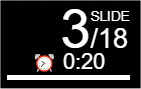
The above example shows that the Tour has 18 Keyframes and the Active Keyframe is 3.
It also shows that this Keyframe lasts 20 seconds.
If the Tour has more than one Keyframe, instead of passively waiting for a Tour Master to change it, you can invoke the playback of all the Keyframes in turn, complete with their captions and sound clips. You will be experiencing a GeoCast.
To do that, instead of connecting to the Tour as above, press the Play button:

which then becomes the Pause button:

When neither connected nor playing, you can single-step (forwards or backwards) through the Tour using the two arrow buttons:
